




Introduction
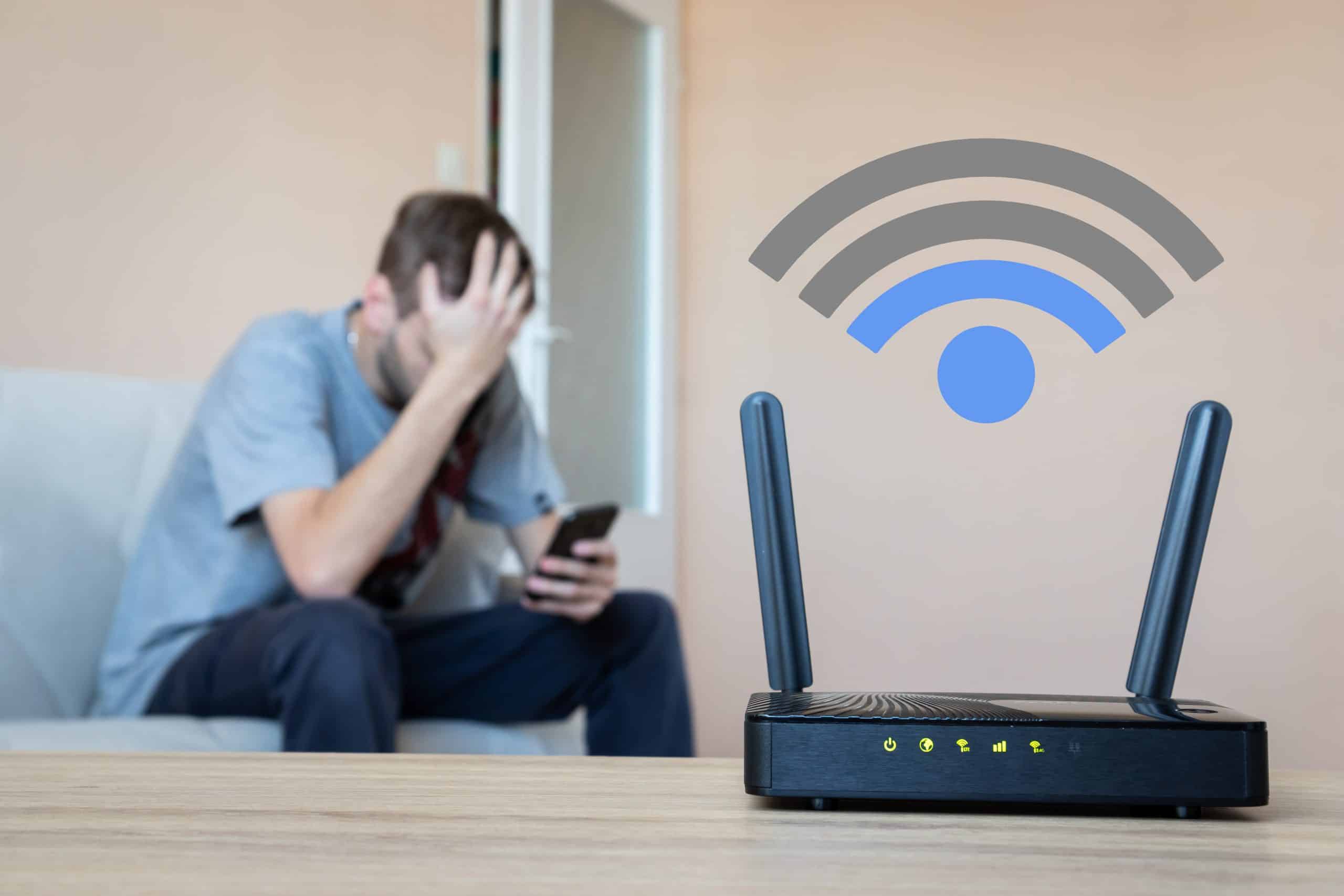
Slow WiFi can ruin your day. Your video keeps buffering. Your game lags. Your work meeting freezes. We’ve all been there.
WiFi internet issues are more common than you think. The good news? Most problems have simple fixes. In this guide, we’ll explain the main causes of WiFi issues and show you how to solve them. No complicated tech jargon. Just easy steps that work.
What Are WiFi Internet Issues?
WiFi internet issues happen when your device connects to your WiFi network but the internet is slow or doesn’t work at all. These issues can happen at home, in the office, or even in public places.
Some problems are small and quick to fix. Others might need a bit more work.
Common Signs of WiFi Problems
- Web pages take a long time to load
- Video streaming is blurry or keeps buffering
- Online games lag or disconnect
- WiFi signal shows full bars but internet is not working
- Devices keep disconnecting from WiFi
If you notice these signs often, your WiFi needs some attention.
Main Causes of WiFi Internet Issues
1. Weak Signal
The farther you are from the router, the weaker the signal. Thick walls or floors can block signals.
2. Router Problems
Old routers can’t keep up with modern internet speeds. Sometimes, the router just needs a restart.
3. Too Many Devices
If too many devices use the same WiFi, the speed drops.
4. Internet Service Provider (ISP) Issues
Sometimes, the problem is not in your home. Your ISP might have network issues.
5. Interference from Other Devices
Microwaves, cordless phones, or other WiFi networks nearby can disturb your signal.
Simple Fixes for WiFi Internet Issues
Here are easy steps you can try before calling your ISP.
1. Restart Your Router
Turn it off, wait 30 seconds, and turn it back on. This can fix many small problems.
2. Move Closer to the Router
If your signal is weak, move closer. It’s simple, but it works.
3. Reduce Device Load
Disconnect devices you’re not using from WiFi. This frees up bandwidth for your active devices.
4. Check for ISP Outages
Visit your ISP’s website or call them. They often update customers if there’s an outage.
5. Change Router Position
Place your router in the center of your home. Keep it high and away from thick walls.
6. Update Router Firmware
Go to your router’s settings and check for updates. Updated firmware can improve performance.
7. Use an Ethernet Cable
For important tasks like gaming or work calls, connect directly to the router with a cable.
How to Prevent WiFi Issues in the Future
- Upgrade your router every 4–5 years
- Use a WiFi range extender for large homes
- Protect your network with a strong password
- Schedule regular router restarts
- Keep devices updated
Howtech Tips for Better WiFi
Since this is a Howtech guide, here’s our quick tip list for smooth internet:
- Test Your Speed – Use a speed test app to see if you’re getting what you pay for.
- Use 5GHz Band – If your router supports it, use the 5GHz band for faster speed in short range.
- Separate Guest Network – Keep guests on a different network so your main WiFi isn’t overloaded.
- Clear Device Cache – Phones and laptops store temporary data that can slow things down.
When to Call Your ISP
If you’ve tried all the fixes and still have issues, it’s time to contact your ISP. Signs you should call:
- Internet goes out often for no reason
- Your speed is much lower than your plan
- WiFi works fine but internet is completely down
Conclusion
WiFi internet issues can be annoying, but most are easy to fix. Start with simple steps like restarting your router, moving closer, or reducing device load. If nothing works, your ISP can help.
A stable internet connection keeps your work, entertainment, and daily life running smoothly. Follow these Howtech tips, and you’ll spend more time online and less time fixing WiFi.
FAQs
- Why is my WiFi connected but no internet?
It could be an ISP outage, router issue, or a problem with your device’s settings. - Does resetting my router delete my settings?
Restarting does not, but a factory reset will remove all settings. - Can old routers cause WiFi issues?
Yes. Older routers may not handle faster speeds or many devices well. - How often should I restart my router?
Once a week is a good habit to keep your network running smoothly. - What is the difference between 2.4GHz and 5GHz WiFi?
2.4GHz has longer range but slower speed. 5GHz is faster but works best in short range.